228

Occasionally, a forced restart is happening on my Windows 10 computer. When the OS is restarted every program that I've had prior to the restart is reopened at startup. The programs are reopened like I would just double-click them.

I usually hold 5-6 windows of Visual Studio and few more programs all together. When the above happens, I have to wait several minutes until I can start working, as everything takes ages to load.

Is there a setting to disable these programs from automatically opening at startup?

Run5k
  • 16,463
  • 24
  • 53
  • 67
johni
  • 2,454

7 Answers7

186

Good news! It has been somewhat "fixed."

I was interested in clickbangdead's solution, but unfortunately I could not make it work no matter what I tried. Then I went back to the Microsoft Answers thread where he originally posted his solution, because maybe someone could have found a new solution in the subsequent pages. And voilà, indeed. Navigate to the following location:

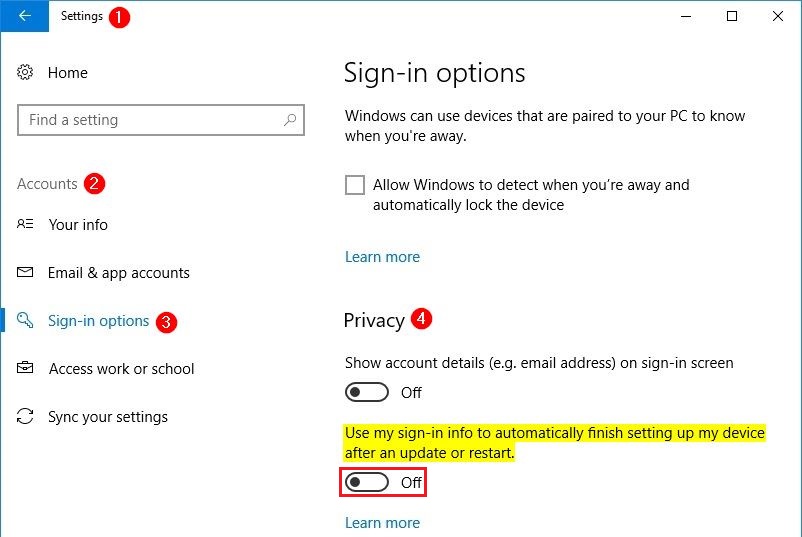
Settings > Accounts > Sign-In Options

Scroll down to Privacy on the right and then set the following to Off:

Use my sign-in info to automatically finish setting up my device after an update or restart.
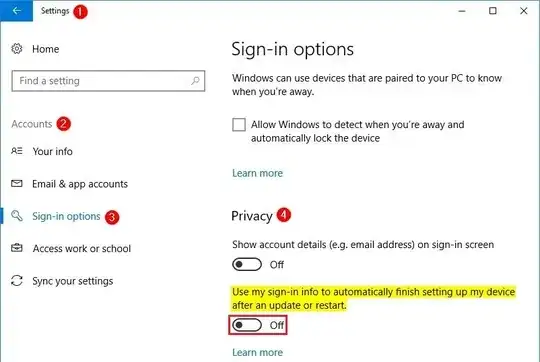
Privacy Settings

I was skeptical, because that doesn't seem like it has much to do with reopening my Google Chrome upon restart, but I tested and it (finally) works!


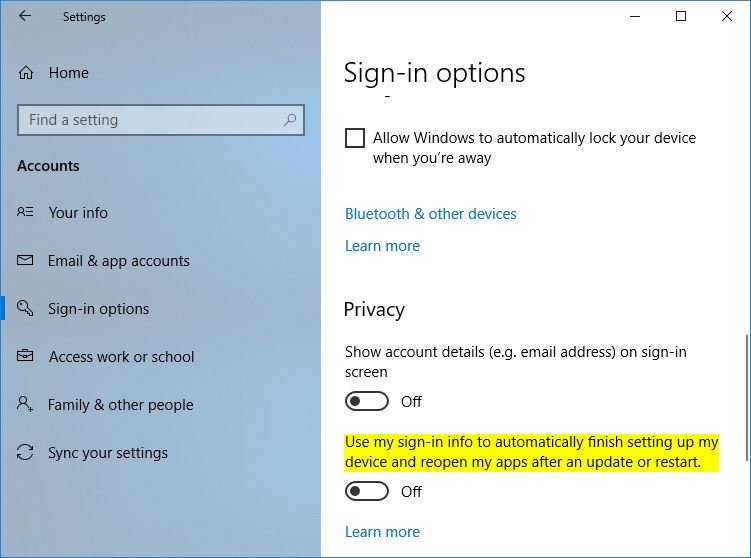
Update: with the release of Windows 10 version 1803 (the April 2018 Update), Microsoft modified the wording within that Privacy option to emphasize that it will "reopen my apps" if it is configured to be On.

Use my sign-in info to automatically finish setting up my device and reopen my apps after an update or restart.

Disable Reopen My Apps

Run5k
  • 16,463
  • 24
  • 53
  • 67
Vinícius M
  • 2,132
26

From: Stop Auto Reopen of Programs after Restart in Windows 10

This is a new "feature" in Fall Creators Update. To prevent apps from being reopened after reboot, don't use the Start > Shutdown button. Instead, use the shutdown.exe command-line.

shutdown.exe /s /t 0

To restart, use this command-line or shortcut:

shutdown.exe /r /t 0
w32sh
  • 12,379
16

Sadly this (privacy settings/use my sign-in info...) doesn't work (at least for me on four machines). It seems like this always happens when you reboot:

https://answers.microsoft.com/en-us/insider/forum/insider_wintp-insider_desktop/programs-autostart-after-boot-in-windows-10/09dd8d3e-7b36-45d1-9181-6587dd5d53ab?page=2

quote from a MS Support Engineer over there:

Old behavior:

  • When you shut down your PC, all apps are closed

  • After reboot/restart, you have to re-open any app you'd like to use

New behavior:

  • When shutting down your PC, any open apps are "bookmarked" (for lack of a better word)
  • After reboot/restart, these apps will re-open automatically

If you want to start with no apps open (other than those set to auto-start via Task Manager/Start), you'll need to ensure all apps are closed before shutting down or restarting the PC.

Wish they had included this for "installation/updates require a restart" only. Didn't find any GPOs so far or any way to turn it off.

parallyze
  • 209
13

The fastest way to reboot without reopening apps I found is: click anywhere on the desktop (or Winkey-D) and then alt-F4 and choose "restart".

ytoledano
  • 257
12

While the setting at Accounts > Sign-in options > "Use my sign-in info to automatically finish setting up my device and reopen my apps after an update or restart" works on some of my devices (1803 and 1809), it was hit and miss. This registry change, however, has been 100% effective at disabling this unwanted feature.

reg add "HKEY_LOCAL_MACHINE\Software\Microsoft\Windows\CurrentVersion\Policies\System" /v DisableAutomaticRestartSignOn /t reg_dword /d 1 /f
shawn
  • 965
11

I posted this to the MS thread: https://answers.microsoft.com/en-us/insider/forum/insider_wintp-insider_perf-insiderplat_pc/programs-autostart-after-boot-in-windows-10-fall/09dd8d3e-7b36-45d1-9181-6587dd5d53ab?messageId=552051d1-b7e5-4709-826a-cce7d243086a

I'll post here too: here is a more friendly solution for someone that doesn't want to have to keep shutting down unwanted apps:

Create a batch file with the following command line:

for /f "tokens=1-3,*" %%a in ('reg query HKCU\Software\Microsoft\Windows\CurrentVersion\RunOnce /v "Application Restart*" ^| findstr "Application Restart"') do reg delete HKCU\Software\Microsoft\Windows\CurrentVersion\RunOnce /v "%%a %%b %%c" /f

Place this somewhere on the drive that the user would have read rights too.

In gpedit.msc, then under User Configuration → Windows Settings → Scripts add the script as a logoff script.

randers
  • 477
5

I just denied all "write" permission for myself to the registry key HKCU\Software\Microsoft\Windows\CurrentVersion\RunOnce.

Works for me.

Edit: This also might be helpfull

dummy
  • 158