48

How can I add additional connector points to a shape in word or powerpoint?

In openoffice draw these are called glue points.

What I want in ms powerpoint:
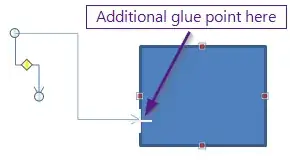
enter image description here

What I can do in open office draw:

enter image description here

UPDATE: Based on Steve Rindsberg's answer I did this: Draw a rectangle, then a second one. Make the second rectangle very small and move it over, then behind the first rectangle. Then group them. I guess this is actually a functioning workaround for my question, even though it is not what I wanted to hear. Accepting the answer...

enter image description here

fixer1234
  • 28,064

7 Answers7

49

From PowerPoint 2013 onwards, you can do the following:

  • Right-click the border of a shape
  • Choose Edit Points
  • Ctrl-click to add a point, or right-click and select Add Point

These become glue points that connector lines and such will snap to. Note that this changes the original shape and may break connections to existing glue points.

With older versions, you can't add more glue points, but you can draw an additional shape with glue points where you want them, then group it with the first shape.

slhck
  • 235,242
Steve Rindsberg
  • 6,033
  • 1
  • 17
  • 20
9

This description can be found at this link:

Edit points in a shape

fixer1234
  • 28,064
4

I had same issue and was annoyed with adding points method because of need to be very careful for spline interpolation between points (was really hard to make straight line and align points very carefully). So here is what I did:

[Step1]

Start to draw a rectangle with two smaller rectangles in it (add lines connected to smaller rectangles to get the big picture)

step1

[Step2]

Resize smaller rectangles to snap on edges of the bigger one

step2

[Step3]

Select no to draw contour for smaller rectangles (at this point I also removed helper lines)

step3

[Step4]

Group the rectangles in a single form

step4

[Step5]

Add this new form to your favorites

step5

[And voilà]

You can now connect lines at added new points

voila

2

I found the answer at Phlogtastic via Indezine

It is kind of convoluted but seems to work mostly in PP 2013:

Step 1 - Right click the shape
Step 2 - Choose Edit-Points
Step 3 - Left-click where you want the new point (cursor changes to a combo square-crosshair)

enter image description here

Step 4 - Right-click at the same position without moving mouse and select Add Point.

enter image description here

In some cases when I tried to do this on a rectangle it made that edge of the rectangle curved. But re-creating the rectangle from scratch made it work ok.

xypha
  • 4,890
2

The above method only works in newer versions of PPT and it doesn't work with curved shapes. If you try to add a connection or glue point to a curved shape it distorts the shape.

Here is a workaround for earlier versions of PPT and for curved shapes.

  1. Add a shape, any shape.

  2. Then away from the first shape add a circle shape and shrink it down as small as you can make it - you can use the Size tool to make it say 0.1cm - so that it is just a dot.

  3. To start with make sure the fill colour of the dot is different from the shape at point '1'.

  4. Amend the line (outline) colour of the dot so that it has no colour.

  5. Duplicate the dot a few times - sufficient for the number of connection points you want to add to the shape at '1'. They will become your new connection points.

  6. Then position the dots just inside the outer edge of the shape at '1' exactly where you want them to be.

  7. When you've done this and you're sure they're exactly where they should be, change the fil colour of all the dots to the same as the main shape at '1'. So that you can no longer see them.

  8. Now select and group the main shape at '1' and all the dots inside it together.

  9. Finally add another shape, then a connector, and try connecting it to the main shape at the the postion where you've added one of your dots.

    If this has worked both ends of the connector should be green, thus proving your dots are now acting as connection points.

  10. If you're using a gradient fill for the main shape then the points will still be visible.

    However if at point 8 where you group them altogether, you bring the main shape to the front thus masking the dots, it will still work.

1

The "Add Point" super sucks, never use it. Just:

  1. create a tiny circle.
  2. Bring it to the front.
  3. adjust its transparancy to 90%.
  4. group two shapes together.

#3

#4

Jay Yang
  • 111
-2

I figured PowerPoint 2013 does not allow to edit the "arrow connector" shape's points. Creating a "curve" lets me edit the points of the curve.

eel ghEEz
  • 318