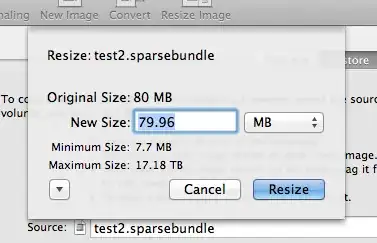
I have an encrypted volume on OSX Lion.
How do I make it larger?
I'm assuming you have opened Disk Utility and you can see your disk image in the list
Make sure your .sparsebundle / .sparseimage is unmounted / ejected
Select your disk image
Select Images, then select Resize...
Enter your password
Resize that mofo
Double-click the disk image in the list to mount it
Choose your path
If you select the actual volume in the list (the volume in the image, not the image) and the available space matches the new resized size, then you are done
It doesn't match? Well... This means you have a disk image with a partition map. Read on.
Unmount / eject that sucker
Select the disk image (the .sparsebundle / .sparseimage)
Select the Partition tab
Drag the corner to enlarge partiton to the maximum size
Select apply
There is no step 9! Treat yourself to a large, toasty, disk image / chilled beverage
All it takes is a short Google search to discover the answer. Ray's Weblog has a solution:
A Sparse Bundle Image will increase in size automatically but will not shrink automatically. Before shrinking the sparse bundle, mount it and empty the trash to get rid of any deleted items from the image.
Unmount the image and follow the commands below.
To compact (image size stays the same):
hdiutil compact ~/Documents/filename.sparsebundle
hdiutil compact -help (for a list of options)
To increase the image size (eg., 20G to 30G)
hdiutil resize -size 30g ~/Documents/filename.sparsebundle
hdiutil resize -help (for a list of options)
Mount the image then do a Get Info on the Volume to see the new size.


I have an encrypted .sparsebundle image and the Disk Utility approach failed with "The selected image cannot be resized" error. What worked instead was this Terminal command:
hdiutil resize -size 30g ~/Documents/filename.sparsebundle
(Replace 30g with the desired size.)

Easiest way, especially on newer versions, is to put a large file in the folder you wish to create a disk image from, go through the process in disk utility, then delete the large file. Then you have a folder, protected as a disk image with a larger capacity - it's the 12M or whatever they give you plus the memory of the large file.
Or if you've run out of space just back up what's in the file and then make a new one with the old stuff in it, and you'll have 12M extra.