27

So, if I go to Internet options in Internet Explorer: enter image description here

I can adjust the settings for when IE checks for updates: enter image description here

Can I do something similar in Google Chrome? Right now when I change my JavaScript file and debug from Visual Studio, Chrome will always use the cached version rather than using the modified version. In order to be able to use the current version I have to manually clear out my temporary internet files/cache, which is really annoying.

Steven
  • 28,386

5 Answers5

56

Option 1: Disable cache temporarily

  1. Open Developer Tools (Press F12 or Menu, More Tools, Developer Tools)
  2. Open Developer Tools Settings (Press F1 or DevTools Menu, Settings)
  3. Check "Disable cache (while DevTools is open)" under the Network header of the Preferences pane

Option 2: Disable cache for session

Start Chrome with the command-line switches --disk-cache-size=1 --media-cache-size=1 which will limit the caches to 1 byte, effectively disabling the cache.

Option 3: Manual Force Refresh

Reload the current page, ignoring cached content: Shift+F5 or Ctrl+Shift+r

Chrome Keyboard Shortcuts - Chrome Help (Under "Webpage shortcuts")

Option 4: Extra Reload Options (Source)

With Developer Tools open, right-click the Reload button to display a reload menu with the following:

  • Normal Reload (Ctrl+R)
  • Hard Reload (Ctrl+Shift+R)
  • Empty Cache and Hard Reload
Steven
  • 28,386
9

It may not be 100% related to the chrome refresh but for further developpment. Like @Dom said, you can add a ?v=# after your ressource. One way to automate the process is to hash the content of the said file and use that as the version.

I have a snippet code on how to to this in C# (Razor for implementation) if this can help.

Helper:

public static string HashUrl(string relativeUrl)
    {
        var server = HttpContext.Current.Server;
        if (File.Exists(server.MapPath(relativeUrl)))
        {
            byte[] hashData;
            using (var md5 = MD5.Create())
            using (var stream = File.OpenRead(server.MapPath(relativeUrl)))
                hashData = md5.ComputeHash(stream);

            return relativeUrl.Replace("~", "") + "?v=" + BitConverter.ToString(hashData).Replace("-", "");
        }
        return relativeUrl + "?v=notFound";
    }

Implementation:

<link rel="stylesheet" href=@Util.HashUrl("~/Controllers/Home/Views/Index.css") />

Hope this helps

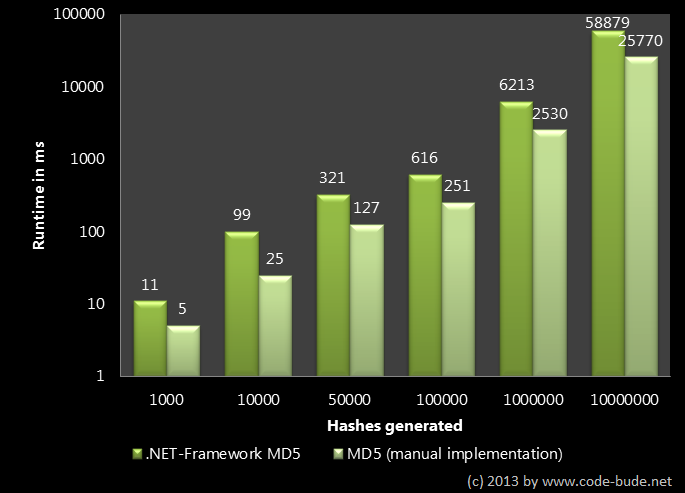
EDIT --- Some have asked for some build runtime and for 1000 small resources, it takes approximately 11 ms.

https://en.code-bude.net/2013/08/07/md5-hashes-in-c-benchmark-and-speed-%E2%80%8B%E2%80%8Boptimization/

enter image description here https://en.code-bude.net/wp-content/uploads/2013/08/md5_performance_benchmark_2.png

5

In other cases where these may not be possible, for example wanting to force a refresh on an end-user's computer that you don't have access to, you can append a version number to the script name as a query parameter making the browser identify it as a different file. ie. example.js?v=1. Bear in mind you'd need to change the number on each reload to force it.

You could also do this with local development, but the dev tools method is much more efficient.

Dom
  • 171
3

in addition of @Steven answer, when you get the Developer Tools Console opened, you can Right Click on the refresh button and use the drop down menu.

In this menu you get an option for "Empty Cache and Hard reload".

Is what you're looking for.

Leze
  • 131
1

If you are developing the site, then you should know that Chrome requires the must-revalidate setting in Cache-Control in order to properly re-fetch files when they are changed on the server.

The other answers tell you how to hit SHIFT-F5 to force your own version of Chrome to refetch all the files. But is it reasonable to tell all the users of the site to do this every time the site changes? If you set Cache-Control to include must-revalidate then Chrome will check to see if any files have changed, and then download them properly when needed.

See the details at this blog post: https://agiletribe.wordpress.com/2018/01/29/caching-for-chrome/

AgilePro
  • 161